
Migration to Solar System from Manual Install
Introduction
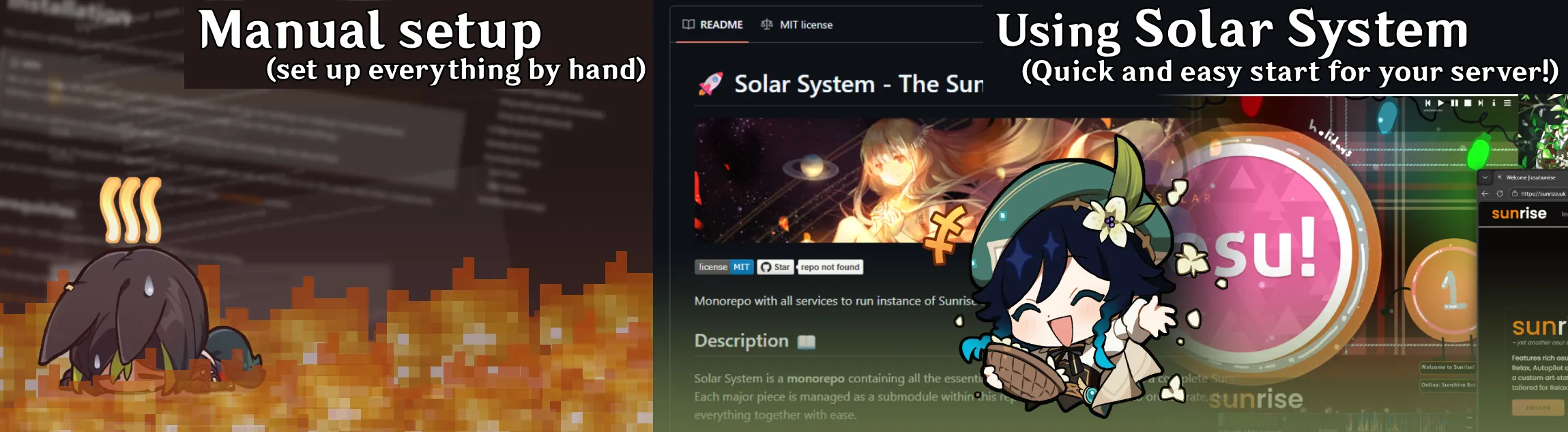
Section titled “Introduction”Previously, you might have installed Sunrise server manually without using Solar System Orchestrator. This guide will help you migrate to Solar System from your manual installation.
Prerequisites
Section titled “Prerequisites”Upgrading
Section titled “Upgrading”Setting up the Solar System
Section titled “Setting up the Solar System”-
Stop the Server: Ensure that Sunrise/Observatory/Sunshine containers are not running before making any changes. (Leave databases containers running.)
-
Clone the Solar System repository: Clone the Solar System repository with submodules.
Terminal window git clone --recursive https://github.com/SunriseCommunity/Solar-System.gitcd Solar-System -
Copy the configuration files: Copy the configuration files from your manual installation to the Solar System repository.
Terminal window cp .env.example .envcp Sunrise.Config.Production.json.example Sunrise.Config.Production.json -
Fill the configuration files: Fill the configuration files with your previous configuration values.
For example, if you were using
appsettings.Production.jsonfile, you can copy the values from it to theSunrise.Config.Production.jsonfile.For the
.envfile, each value has a prefix of the component it belongs to. For example,SUNRISE_prefix is for Sunrise,OBSERVATORY_prefix is for Observatory,SUNSHINE_prefix is for Sunshine.
Migrating data from sunrise database
Section titled “Migrating data from sunrise database”Create databases backups
Section titled “Create databases backups”Sunrise database backup
Section titled “Sunrise database backup”Before we are going to initialize the new databases, we need to create a backups of all Sunrsie services databases.
If you didn’t create a backup of the Sunrise database already, you can do so by running the following command in-game to the server’s bot1 while having superuser privileges.
!backupdatabaseObservatory database backup
Section titled “Observatory database backup”Now you can create a backup of the Observatory, to do so, follow the following steps:
Get the docker container ID of the database container by running the following command:
docker ps --no-trunc --format "{{.ID}} {{.Names}} {{.Ports}}"And look for the database container, it should be named like observatory-postgres-1
1dce4dbf874e5840a71fc359369ee6ae61e5bd5b46e8baff66091821f1470009 observatory-postgres-1 0.0.0.0:5432->5432/tcpCopy the first part of the container ID, in this case 1dce4dbf874e5840a71fc359369ee6ae61e5bd5b46e8baff66091821f1470009
Then run the following command to create a backup of the Observatory database:
$ docker exec -it <container_id> pg_dumpall -c -U <observatory_username> > dump_observatory_postgres.sqlAfter that, you should see a file named dump_observatory_postgres.sql in the current directory. Make sure it’s not empty or doesn’t contain any errors.
Sunshine database backup
Section titled “Sunshine database backup”In comparison to other services, Sunshine database is stores as a single file in the data directory.
Make sure you located sunshine.db file in the data directory.
Applying database backups
Section titled “Applying database backups”Before applying the backups, start the Solar System stack by running the following command:
./start.shAfter that, stop all the non-database containers as you did with the manual installation.
Applying Sunrise database backup
Section titled “Applying Sunrise database backup”Find the backup snapshot you made earlier, it should be named like Backup_YYYYMMDDHHMMSS.zip and located in the Database/Backups directory.
Inside the backup snapshot, you will find a file named backup_mysql_YYYYMMDDHHMMSS.sql. This is the database backup file.
Get the docker container ID of the database container by running the following command:
docker ps --no-trunc --format "{{.ID}} {{.Names}} {{.Ports}}"And look for the database container, it should be named like osu-sunrise-infrastructure-mysql-sunrise-db-1
de72eaebe131634413be592186f7b5bab3a2b8970ca521394b9a57e77aa9aaa5 osu-sunrise-infrastructure-mysql-sunrise-db-1 33060/tcp, 0.0.0.0:3306->3306/tcpCopy the first part of the container ID, in this case de72eaebe131634413be592186f7b5bab3a2b8970ca521394b9a57e77aa9aaa5
Then run the following command to apply clear all tables before applying the backup:
$ docker exec -it <container_id> mysql -u <root username> --password=<root password> <database_name>DROP DATABASE IF EXISTS <database_name>;CREATE DATABASE <database_name>;The output should be like this:
mysql> DROP DATABASE IF EXISTS sunrise;Query OK, 19 rows affected (0.354 sec)
mysql> CREATE DATABASE sunrise;Query OK, 1 row affected (0.009 sec)
mysql> exitBye
Then apply the backup by running the following command:
$ cat backup_mysql_YYYYMMDDHHMMSS.sql | docker exec -i <container_id> mysql -u <root username> --password=<root password> <database_name>After that, don’t forget to move Data files from backup snapshot to the Data directory.
Applying Observatory database backup
Section titled “Applying Observatory database backup”Find the backup snapshot you made earlier, it should be named dump_observatory_postgres.sql.
Get the docker container ID of the database container by running the following command:
docker ps --no-trunc --format "{{.ID}} {{.Names}} {{.Ports}}"And look for the database container, it should be named like osu-sunrise-infrastructure-observatory-postgres-1
1dce4dbf874e5840a71fc359369ee6ae61e5bd5b46e8baff66091821f1470009 osu-sunrise-infrastructure-observatory-postgres-1 0.0.0.0:5432->5432/tcpCopy the first part of the container ID, in this case 1dce4dbf874e5840a71fc359369ee6ae61e5bd5b46e8baff66091821f1470009
Then run the following commands to apply the backup (in order):
$ docker exec -i <container_id> psql -U <username> -d postgres -c "DROP DATABASE IF EXISTS <database_name>;"$ docker exec -i <container_id> psql -U <username> -d postgres -c "CREATE DATABASE <database_name>;"$ cat dump_observatory_postgres.sql | docker exec -i <container_id> psql -U <username> -d <database_name>Applying Sunshine database backup
Section titled “Applying Sunshine database backup”Find the backup snapshot you made earlier, it should be named sunshine.db.
Move it to the Sunshine/data directory in the root of the Solar System repository.
Finishing up
Section titled “Finishing up”After you applied all the backups, you can start the server again.
Run the following command to start the server:
./start.shPlease don’t forget to rebuild global leaderboards, by running !flushcache yes_i_understand_what_im_doing command to the server’s bot1 as a superuser.
Make sure all data was migrated correctly, by checking the Observatory and Sunrise logs. And of course you should see existing users and beatmaps while accesing the server.
If you didn’t see any errors while migrating, but still don’t see any data, wait a couple of minutes to make sure that the problem is not with the cached data.